
Overview
Every live cam on HDOnTap.com has a chat panel next to the video where you can talk with other viewers, share snapshots and follow the action together. In May 2026 we released a major update to chat based on viewer feedback. It added notifications, appearance settings, easier catch-up, pop-out chat, muting and stream issue reporting. You can read the announcement in New HDOnTap Chat Features.
This guide walks through everything you can do in chat.
Sign in to join the conversation
Anyone can read chat. To post, reply, like, report or get notifications, you need a free HDOnTap.com account. If you aren't signed in, you will see Sign in to join the conversation at the bottom of the chat panel. Click Sign in, or create an account if you don't have one yet.
Comments and Live Chat modes
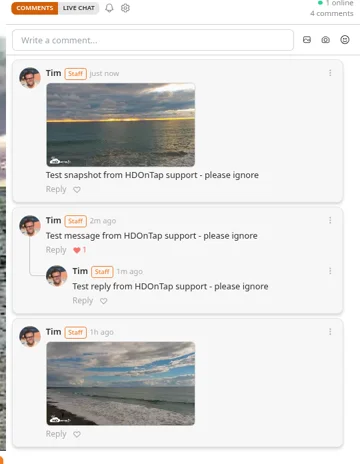
At the top of the chat panel, two buttons let you switch how conversations are shown:
- Comments (the default) shows conversations as threads, with replies indented under each comment. Threads are sorted by recent activity, so conversations with new replies stay near the top.
- Live Chat shows every message in the order it was posted, with the newest at the bottom, like a traditional chat room.
Both modes show the same messages. The header also shows the total number of comments on that stream and how many people are online. Click N online (for example, "1 online") to see a list of the viewers who are online.
Post a message
- Click in the message box (Send a message... in Live Chat or Write a comment... in Comments).
- Type your message. Messages can be up to 500 characters.
- Send it. An orange Send button appears as soon as you start typing.
- In Live Chat, press Enter to send. Press Shift+Enter for a new line.
- In Comments, press Ctrl+Enter (PC) or ⌘+Enter (Mac), or click Send. Press Enter alone for a new line.
Buttons next to the message box let you add more to your message:
- Upload image (picture icon) posts an image from your device.
- Post snapshot (camera icon) captures a snapshot of the live video. It works the same as the orange Snapshot button under the video. See How to Take a Snapshot of a Live Stream.
- Open emoji picker (smiley icon) opens a picker with a search box and emoji categories. Click an emoji to add it to your message.
The first time you post, a Community Guidelines box appears. Read the guidelines and click Agree & Continue to post.
Tip: If you see "Slow down, you're sending messages too fast," wait a moment and try again.
Reply to a message
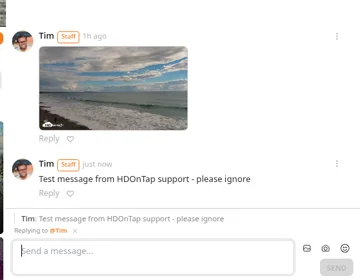
Click Reply under any message to answer it. A bar above the message box shows the message you're answering ("Replying to @Name"). To back out, click Cancel reply.
In Comments mode, your reply appears indented under the original message. In Live Chat mode, it appears at the bottom with a small header quoting the message you replied to. The person you replied to gets a notification.
Like a message
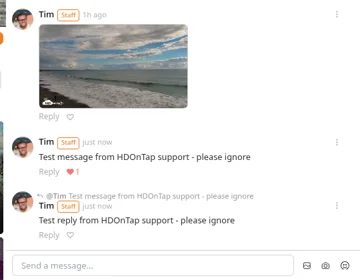
Click the heart icon next to Reply to like a message. The heart turns red and shows the number of likes (for example, "❤ 1"). Likes are the only reaction in chat.
Edit or delete your own messages
Click the ⋮ (More actions) menu on one of your own messages and choose Edit or Delete. Edited messages are marked "edited."
When you choose Delete, chat asks "Delete this message?" right under the message. Click Confirm to delete it or Cancel to keep it. A deleted message is replaced with [Message removed].
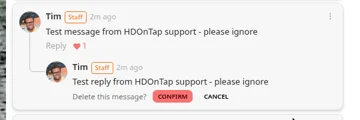
You can delete a snapshot you posted to chat the same way: ⋮ > Delete > Confirm. This removes the chat post, but the saved snapshot stays in your My Snapshot Images page and the galleries. To have that copy removed too, contact support through the HDOnTap Viewer Feedback site or [email protected].
HDOnTap staff also see a Pin message option in this menu. Pinning is for staff only.
Post a snapshot to chat
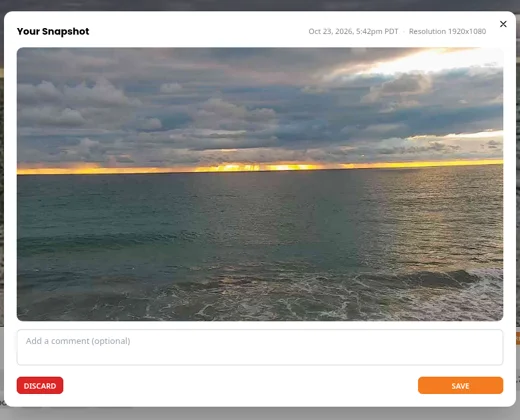
- Click the camera icon (Post snapshot) next to the message box. The Your Snapshot window opens with the date and time, the resolution and a preview.
- Optionally, type in Add a comment (optional).
- Click Save to keep it, or Discard to throw it away.
- After you save, click Post to Chat. You'll see "Posted to chat." You can also Download the image, Copy Share Link or share it to Facebook, X, WhatsApp or email.
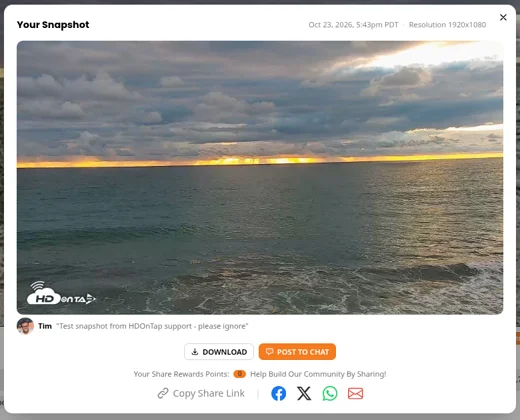
Saving a snapshot adds it to My Snapshot Images and the stream's gallery even if you don't post it to chat. For more, see How to Take a Snapshot of a Live Stream.
Notifications
Bell notifications
When you are signed in, a bell icon appears in the chat header. It lets you know when someone replies to one of your messages or likes one of your comments. Click the bell to see recent activity, then click any notification to jump straight to that message. If nothing is new, it shows "No new notifications."
Browser notifications
Browser notifications can alert you on your computer or mobile device even when HDOnTap.com isn't your active tab. Go to the Chat tab in your Account Settings (the Chat Settings page) and click Enable Browser Notifications. Your browser will ask for permission, and notifications must be allowed in your browser and device settings. Then check Notify me when someone replies to my chat messages, Notify me when someone likes my chat messages or both, and click Save Preferences.
Email notifications
Email notifications are off by default. To opt in, check Email me when someone replies to my chat messages, Email me when someone likes my chat messages or both on the Chat tab in your Account Settings, then click Save Preferences.
Catch up on the conversation
- Scroll back as far as you like. Older messages keep loading as you scroll up, with no limit.
- One-click catch-up. When new messages arrive while you are scrolled back, a small button shows how many are waiting (for example, "9 new"). Click it to jump to the latest messages without reloading the page. In Comments mode this also keeps the page from shifting while you read.
Chat settings (gear icon)
The chat header has a Comments/Live Chat toggle, a bell icon for Notifications and a gear icon. Click the gear icon to open the settings menu:
- Appearance customizes how chat looks.
- View Community Guidelines shows the chat rules.
- Pop Out Chat opens chat in its own window.
- Hide Chat hides the chat panel.
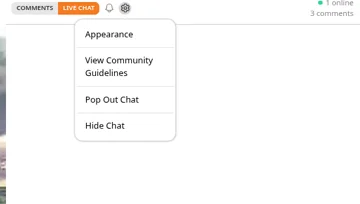
Notification settings aren't in this menu. They are on the Chat tab in your Account Settings (see Notifications).
Appearance
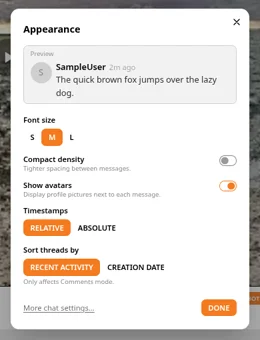
In Appearance you can change:
- Font size: S, M or L.
- Compact density: tighter spacing between messages.
- Show avatars: display profile pictures next to each message.
- Timestamps: Relative (such as "2m ago") or Absolute (such as "3:42 PM").
- Sort threads by: Recent Activity (the default) or Creation Date. This only affects Comments mode.
A preview at the top shows your changes. Click Done when you're finished, or More chat settings... to open the Chat Settings page.
Pop out or hide chat
Pop Out Chat opens chat in a separate window, which is handy for keeping chat on a second monitor while you watch. Hide Chat removes the chat panel for a cleaner view. In both cases, the space next to the video shows suggested streams instead. To bring a hidden chat back, click Show chat at the top right of that column.
Mute a viewer
If you would rather not see someone's messages, open the ⋮ (More actions) menu on one of their messages and choose to mute them. Muting only changes what you see. Manage your muted users anytime in the Muted Users section on the Chat tab in your Account Settings.
Report a message
If a message breaks the Community Guidelines, open its ⋮ (More actions) menu and choose Report. Confirm when asked "Report as inappropriate?" Our moderators will review it. Please report problems instead of arguing in chat.
Community Guidelines
To keep chat friendly for everyone:
- Be respectful and treat others the way you want to be treated.
- Keep comments relevant to the live stream and current discussion.
- Do not post hateful, abusive, explicit or offensive content.
- No spam, trolling, baiting, harassment or impersonation.
- Avoid sharing personal or private information.
- If you see a problem, use the report feature instead of arguing.
Comments may be removed and accounts may be restricted for rule violations. HDOnTap staff, moderators and stream ambassadors help keep chat on track. You may see a pinned message from them at the top of chat, and messages from them carry a role badge.
Report a problem with the stream
To report a problem with the video itself, use the Report button under the video player, not chat. Choose a reason (for example, the stream is down, buffering, has audio issues, shows the wrong camera angle or has an obstructed lens), add a short description and submit. Your report goes straight to our team.
For problems on your end, such as buffering or a stream that won't load, see Stream Buffering.
Still need help?
Contact the HDOnTap support team at [email protected] or submit a support request.