
Overview
HDOnTap Studio Controls at studio.hdontap.com is where camera operators watch and steer HDOnTap's live PTZ (pan-tilt-zoom) cameras. From one page you can stream a camera live, steer it, jump to saved presets, run patrol tours, take snapshots, log sightings in Controller Notes, chat with other operators and book time on the operator schedule.
Note: Looking for the older Studio Controls inside the HDOnTap Portal? See Sharing Legacy Studio Controls.
Who can do what
There are two operator roles. Your role is shown under your name at the bottom of the sidebar.
| Role | Which cameras you see |
|---|---|
| Operator | Every camera that belongs to your organization |
| Volunteer Operator | Only the cameras an administrator has assigned to you |
Some features are for administrators only, such as adding, editing or deleting cameras, creating and managing presets and groups, the Events and Audit Log pages, deleting notes and booking schedule slots for other people. If you need one of these, contact your administrator.
Sign in and out
- Go to studio.hdontap.com.
- Enter your Username and Password and click Access System.
Sessions last 24 hours. After that, you'll be returned to the sign-in page. Just sign in again.
To sign out, click the exit (arrow) icon at the bottom left of the sidebar, next to your name. There is no "forgot password" link. If you're locked out, contact your administrator.
The main screen
The left sidebar has:
- System Status, showing how many of your cameras are Online, Offline and the Total
- Cameras, Notifications (an orange badge shows unread notifications) and Schedule
- Your name, photo and role at the bottom. Click it to open your account settings.
The top bar on the Cameras page has:
- A clock showing the current time in UTC (Coordinated Universal Time), not your local time
- Search cameras..., which matches a camera's name, location or address
- A status filter (All Status, Online, Offline) and a group filter (All Groups or a group name)
- Three view buttons: List, Grid and Map
The camera list shows "X of Y Cameras" for your current search and filters.
- List view shows each camera's status dot (green is online, red is offline), name, group tag, location, response time and when it was last seen.
- Grid view shows a card for each camera with a preview image (or NO SIGNAL when offline) and a Live or Offline badge.
- Map view shows cameras that have GPS coordinates as pins on a map.
Camera status refreshes automatically every 30 seconds. Buttons for adding or removing cameras are for administrators.
Open a camera and start the stream
- Click a camera in the list (or its card in grid view).
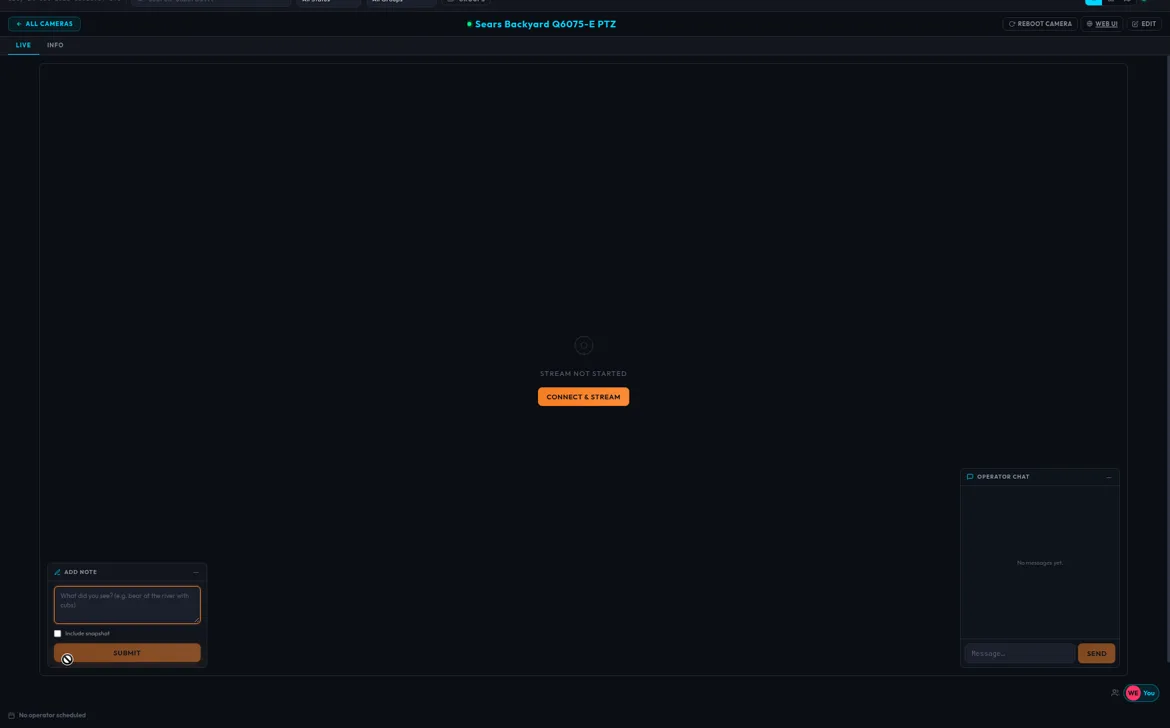
- The camera page opens with Live and Info tabs. The video area reads Stream Not Started.
- Click Connect & Stream. You'll see "Connecting to stream…" and then a "Connected to" message with the camera's name. On cameras you can steer, the tab changes to Live + PTZ.
If the camera is offline, the video area says Camera Offline.
Live and Stalled
A badge in the top-right corner of the video shows the stream's status:
- Live (green): new pictures are arriving from the camera.
- Stalled (gray): no new picture for more than 5 seconds, so the picture on screen may be frozen. You may see it briefly while the stream starts.
On a still scene, especially at night, a frozen picture and a live one look the same, so check this badge before assuming nothing is happening. If it stays Stalled, click Pause and then Play, or go back to All Cameras and reopen the camera.
Pause and Play
Click Pause at the top of the page to stop the video without leaving the page. The video shows Stream Paused, and the steering controls, the tabs under the video and the Note button are hidden. Click Resume Stream (or Play) to start again. Please pause cameras you aren't actively watching.
The stream runs only while you're on the page. If you leave and come back, click Connect & Stream again.
Steer the camera (Standard mode)
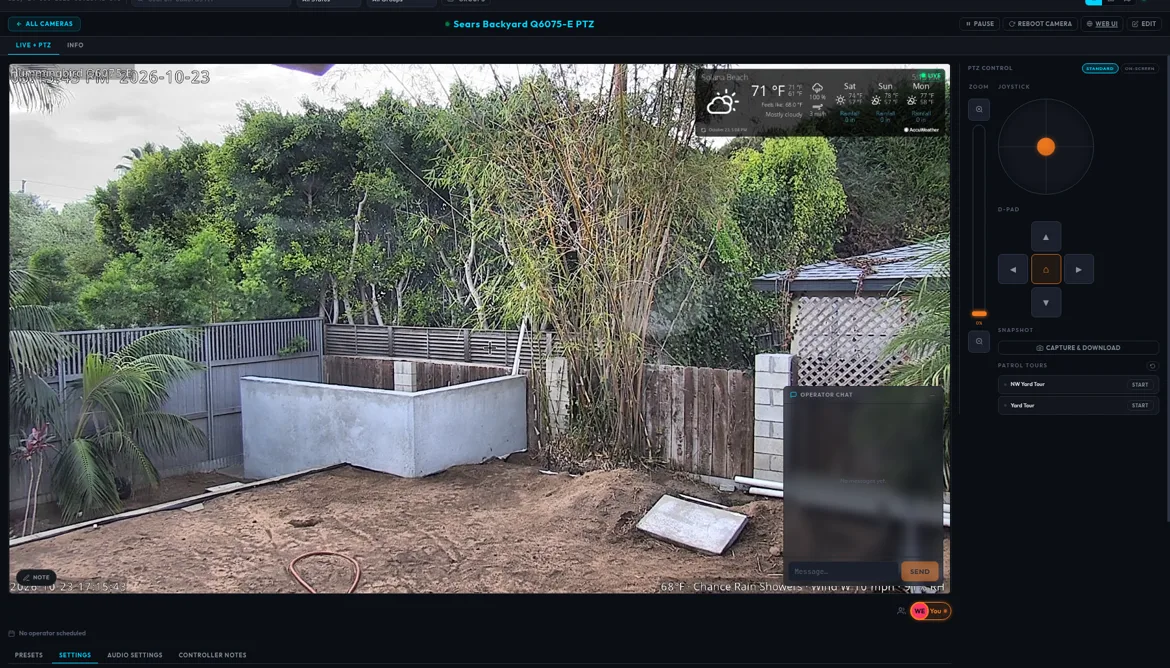
On a camera you can steer, the PTZ Control panel appears to the right of the video.
- Zoom: press and hold the zoom-in (+) or zoom-out (–) button. The tall orange bar between them shows the zoom level as a percentage (0% is fully wide, 100% is fully zoomed in). Click or drag on the bar to go to a zoom level. If it shows "—", see Settings tab.
- Joystick: press anywhere in the circle and drag. The farther from the center, the faster the camera moves. Release to stop.
- D-Pad: press and hold the ▲ ▼ ◄ ► arrows to move. Release to stop. The center ⌂ button sends the camera to its home position.
On some cameras, a quick tap on the joystick or a D-Pad arrow nudges the view one small step instead of moving continuously, and the camera may coast a little after you let go. That's normal.
Steer on the video
In either mode:
- Click to center: click any spot on the video and the camera turns to put that spot in the middle of the picture.
- Mouse-wheel zoom: with the pointer over the video, scroll up to zoom in and down to zoom out. Trackpad scrolling works too.
On-Screen mode
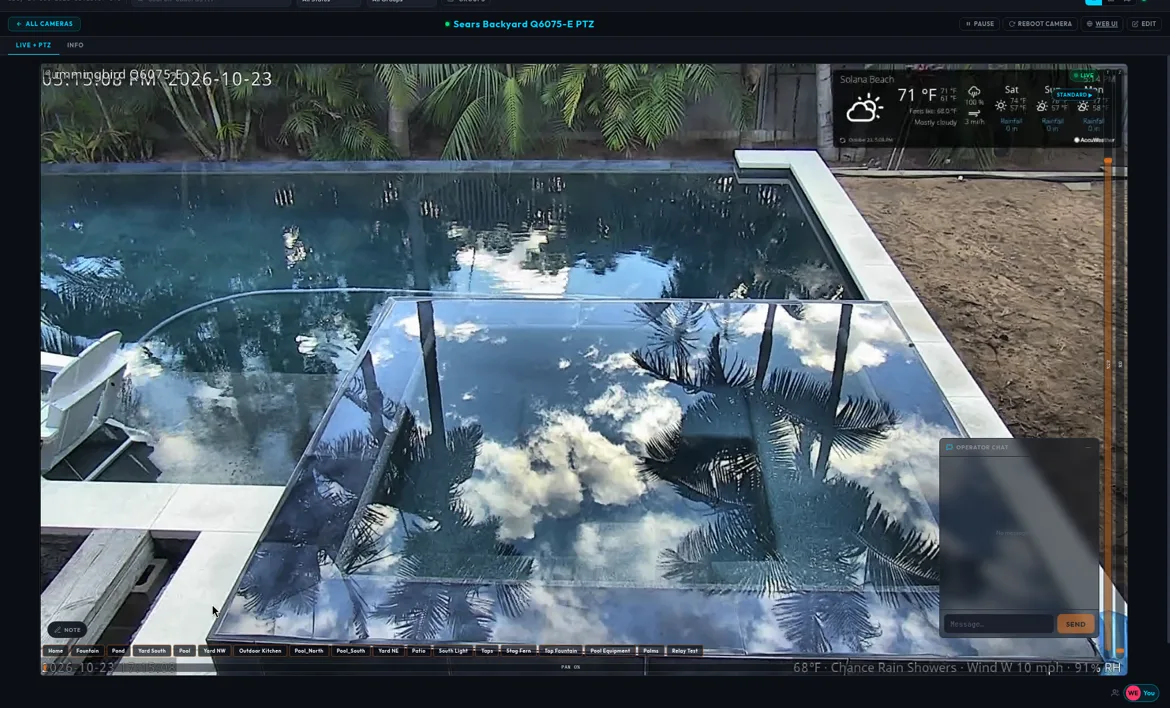
Click On-Screen at the top of the PTZ Control panel for a bigger video with the controls drawn over the picture:
- T bar (right edge) for tilt, Z bar (far right) for zoom and PAN bar (bottom) for pan. Click or drag on a bar to move the camera there.
- A row of preset buttons over the video. Click one to go to that preset.
- The gear icon (top left of the video) opens On-Screen Settings: Slider Opacity, Preset Opacity and Preset Position (Top, Bottom, Left or Right).
On-Screen mode doesn't include the joystick, D-Pad, Home, Snapshot or Patrol Tours, and the Presets, Settings and Audio Settings tabs are unavailable. Controller Notes still works. Click Standard ▸ on the video to switch back. Studio Controls remembers your mode and On-Screen settings for each camera in this browser.
Use presets
Presets are saved camera views, such as "Nest" or "Wide Shot". Administrators set them up, and operators use them. Open the Presets tab under the video (Standard mode only).
- Click Go on a tile to move the camera there. You'll see "Moving to:" with the preset name, and the camera can take a few seconds to arrive.
- The active preset has a green border on its tile and a green label with its name under the video.
- If the tab says "No presets synced," ask your administrator to set some up.

For administrators: managing presets
Administrators also see tools to save, rename, re-record, add thumbnails to and delete presets, plus Sync and Sync All.
- Save a new preset: aim the camera, type a name in the Save current position... box and click Save. Presets saved this way are marked ● local (stored in Studio Controls). Presets stored in the camera show a number instead.
- Edit a preset: click the Edit preset icon on a tile. The edit toolbar has Go, Save current PTZ position, Capture thumbnail, Delete preset and Close edit. Click the name to rename it.
- Save current PTZ position replaces the preset's saved position with wherever the camera is pointed now. Delete preset asks you to confirm and can't be undone.
- Sync opens Sync Presets from Camera, where you check the camera presets you want (or use Select All / Deselect All) and click Sync Selected. Sync All imports all of the camera's presets right away, with no confirmation. Syncing keeps your local presets.
- After syncing, add a picture to each preset's button: click Go, click Edit preset, then click Capture thumbnail.
Run a patrol tour
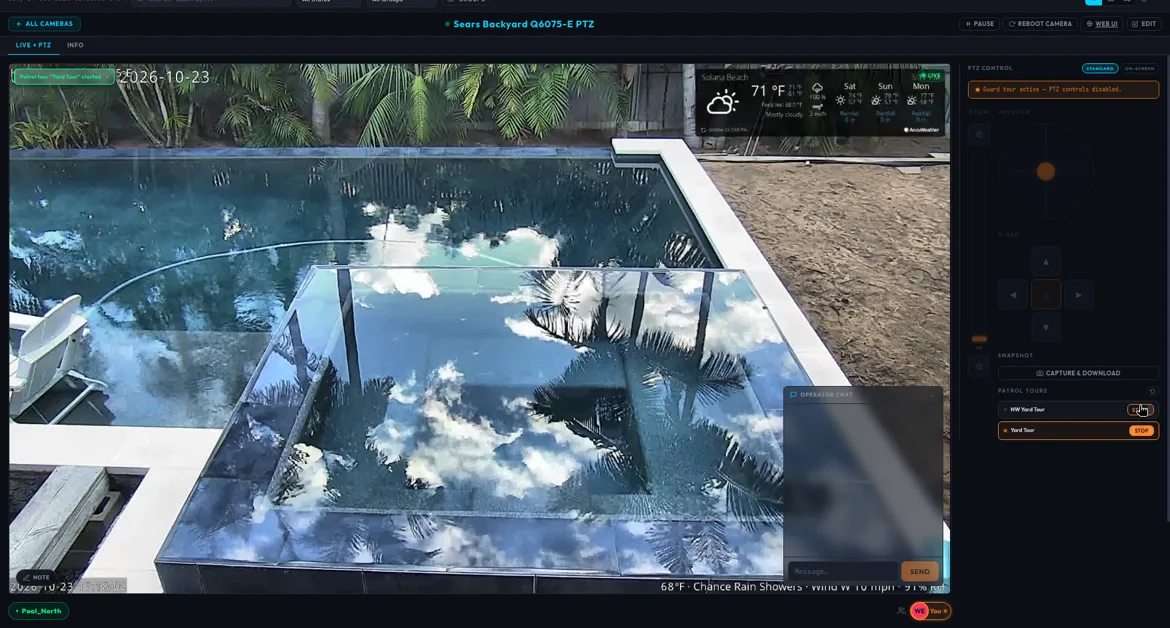
Patrol tours move the camera through a series of views automatically. They're listed under Patrol Tours in the PTZ panel (Standard mode).
- Click Start next to a tour. Only one tour runs at a time, and starting another stops the current one.
- While the tour runs, an orange banner reads Guard tour active — PTZ controls disabled, and the zoom, joystick and D-Pad are grayed out.
- Click Stop to end the tour.
A running tour moves the camera for everyone, so stop tours you started when you're done. When you stop a tour, the camera stays wherever the tour left it. Click a preset's Go button or ⌂ to move it. The circular-arrow button refreshes the tour list.
Take a snapshot
Click Capture & Download under Snapshot in the PTZ panel (Standard mode). You'll see "Snapshot captured & downloaded," and a full-quality JPG of the current view saves to your computer. The file name includes the camera name, the date and the time in UTC.
The snapshot includes any text the camera itself shows on the video (such as a date or weather overlay). It doesn't add an HDOnTap watermark.
Work alongside other operators
Several people can have the same camera open, and everyone can steer it. There's no lock, so the last command wins.
- Who's watching: name chips under the video show everyone who has this camera open. Yours says You.
- Active controller: whoever most recently moved the camera is highlighted in orange. The highlight fades about 25 seconds after their last move.
- Scheduled operator: a line under the video shows who is SCHEDULED now or NEXT, or "No operator scheduled," in the camera's local time.
Operator Chat
The Operator Chat window over the video is shared by everyone who can access this camera. Each camera has its own conversation.
- Type in Message... and press Enter or click Send. Messages can be up to 2,000 characters.
- Click – to collapse it to a Chat button. An orange badge counts new messages while it's collapsed.
- Messages stay in the camera's chat history and can't be deleted, so keep them professional.
Good practice: Before you move a camera, check whether someone else is highlighted as the active controller, and say in chat when you take over. Stop patrol tours you started, pause streams you aren't watching, and don't calibrate zoom or change audio on a live public camera without checking with your team first.
Controller Notes
Controller Notes are a lasting record of sightings and events on a camera.
- Click the Note button (pencil icon) at the bottom left of the video.
- Describe what you saw (for example, "bear at the river with cubs"). Notes can be up to 2,000 characters.
- Check Include snapshot to attach a picture taken at that moment.
- Click Submit, or press Ctrl+Enter (⌘+Enter on a Mac). You'll see "Note saved" or "Note saved with snapshot."
Your name and the time are recorded automatically. If the snapshot can't be taken, the note is still saved without it.
The Controller Notes tab under the video lists notes newest first, with the author, date and time, the note and a thumbnail if a snapshot was attached. Click the thumbnail to open the full-size image. Click Export CSV to download every note for this camera as a spreadsheet with the columns Timestamp (UTC), Author, Note and Snapshot URL.
You can't edit or delete notes after you submit them, so write carefully.
Settings tab
The Settings tab under the video (Standard mode) holds your personal settings. They're saved in this browser for each camera, don't affect other operators and won't follow you to another computer or browser. Clearing your browser data resets them.
- Position shows the camera's current Pan, Tilt and Zoom. Click Refresh Position to update it.
- Calibrate Zoom Range makes the camera zoom all the way out and then all the way in to learn its zoom range. It takes about 30–45 seconds, and the button reads Calibrating… (Camera is moving). Use it if the zoom bar shows "—" or the percentage looks wrong. Afterward, click Go on a preset to return to your view.
- Speed sliders (Slow to Fast): Joystick Speed, D-Pad Speed, Zoom Speed, Preset Speed, Click-Center Speed and Mouse Zoom Speed. Changes apply right away. Try lower speeds for fine framing when zoomed in and higher speeds for sweeping a wide area.
Careful: Calibrating changes the picture for everyone watching, including a public live stream. Check with your team first.
Audio Settings tab
These settings change the camera's audio input (what its microphone or line input picks up for the stream), so they affect everyone. Change them only if you've been asked to.
- Turn Audio Input on or off, choose the Input Source (Line In or Mic, on cameras that support it) and adjust the Input Gain.
- Click Save Audio Settings to apply your changes. Reload from Camera discards unsaved changes and shows the camera's current settings.
Studio Controls doesn't play audio. The video player is muted.
Info tab
The Info tab shows details about the stream, the device (such as model, firmware and serial number) and its configuration. If you report a problem to support, include the camera name and, if you can, the model and serial number from this tab.
Reboot a camera
Volunteer Operators with reboot permission only.
If an administrator has given you permission, you'll see Reboot Camera at the top of the camera page. Use it only as a last resort, after Pause/Play and reconnecting haven't helped, and tell other operators in chat first.
- Click Reboot Camera.
- Confirm: "Are you sure you want to reboot" the camera? "Rebooting the camera will take the live stream offline while the camera boots back up." Click Reboot Camera or Cancel.
- The camera goes offline while it restarts. When it's back online, click Connect & Stream if the stream doesn't come back on its own.
The camera may come back pointed somewhere else, so click Go on a preset afterward.
Book operator time (Schedule)
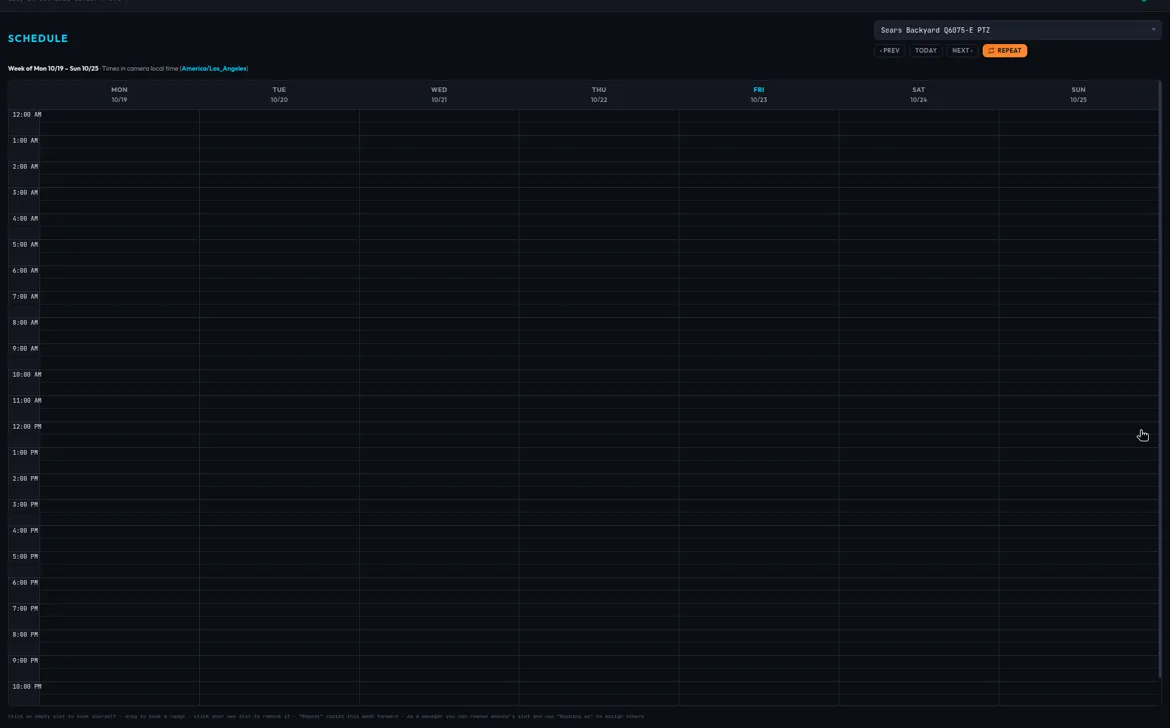
Open Schedule in the sidebar and pick a camera. The weekly calendar runs Monday through Sunday in 30-minute slots.
All times on the grid are in the camera's local time, not yours. Hover over any slot to see that time in your own time zone. Your bookings are blue with your name, and other people's bookings show their names.
- Book a slot: click an empty slot.
- Book a range: press on an empty slot and drag. Release to book them all.
- Remove your booking: click one of your own slots. This happens right away, with no confirmation.
- Repeat: copies your bookings from the week you're viewing onto the following weeks (you choose 1 to 12 weeks).
- Use ‹ Prev, Today and Next › to move between weeks.
You can't remove other people's bookings. If someone else books a slot first, you'll see how many slots were already taken, and the rest of your selection is still booked.
Notifications
The Notifications page shows announcements from HDOnTap, newest first, tagged Info, New Feature or Important. Opening the page marks them all as read and clears the badge in the sidebar.
My Account
Click your name at the bottom of the sidebar to open your account settings:
- Profile: First Name, Last Name, Email and Phone, then Save Profile. Your name appears in the sidebar and on the schedule.
- Profile Photo: Upload Photo, Change Photo or Remove.
- Change Password: enter your current password, then a new password (at least 6 characters) twice, and click Change Password.
- Appearance: the Live Chat Transparency slider makes the chat window over the video more or less see-through. It's saved in this browser.
- Your Timezone: pick your home time zone so the schedule can show your time next to the camera's time.
Quick reference
| I want to… | Do this |
|---|---|
| Start watching | Open a camera, then click Connect & Stream |
| Stop the video without leaving | Pause |
| Point at something | Click it on the video |
| Zoom | Scroll over the video, hold +/–, or click the zoom bar |
| Steer smoothly | Drag in the Joystick circle |
| Return to the home view | ⌂ in the middle of the D-Pad |
| Jump to a saved view | Presets tab, then Go (or a preset button in On-Screen mode) |
| Save a picture | Capture & Download |
| Log a sighting | Note button on the video |
| Talk to other operators | Operator Chat |
| See who's steering | The orange-highlighted name under the video |
| Book my shift | Schedule, then click or drag empty slots |
Frequently asked questions
The picture isn't changing. Is it frozen?
Check the badge on the video. Stalled means no new picture for more than 5 seconds. Try Pause then Play, or reopen the camera. If it continues, tell your team in chat.
Why don't I see the joystick or PTZ panel?
Click Connect & Stream first. In On-Screen mode the panel is hidden, so click Standard ▸ on the video. Some cameras can't be steered; their tab reads Live instead of Live + PTZ.
Why are my controls grayed out?
A patrol tour is running. Click Stop next to the tour under Patrol Tours.
The camera moved on its own. Why?
Another operator is probably steering it. Look for the orange-highlighted name under the video. A patrol tour may also be running.
Why did my speed settings reset?
They're saved per browser and per camera. A different computer or browser, a private window or clearing browser data resets them.
Why was I sent back to the sign-in page?
Sessions expire after 24 hours. Sign in again.
A camera I expect is missing. Why?
Volunteer Operators only see cameras assigned to them, and Operators only see their organization's cameras. Ask your administrator.
What time zone does the schedule use?
The camera's local time. Hover over a slot to see your own time, and set Your Timezone in your account settings.
Who do I contact for help?
Contact your administrator, or HDOnTap support at [email protected] or 858.481.4096, Option 2.
Still need help?
Contact the HDOnTap support team at [email protected] or submit a support request.